
Lesson in a Duplicate Game and Duplicate Game in a Lesson

Dec 10, 2020
How to have a fun Duplicate Game in your lesson or present your lesson as a Duplicate Game.
Click Here for video on how to run Duplicate.
Start your teaching session in Shark as usual and seat all your students. You are not limited to 4 students per table. The duplicate game can be 2 students vs robots or even 1 student per table.
  | Now that you have everyone seated the way you want, click "Duplicate Game tab", Then Select "Setup Duplicate Game." |
 | You can adjust the parameters of your game. The minutes per board is not enforced, you can always allow late tables to complete a round, or force score ( claim or fast forward ) the missing boards. At this time all boards need to be scored on all tables. Auto Advance Rounds will automatically go to the next round once all boards are complete. Keep it off if you plan to go over the hands in between rounds. Press “Prepare Duplicate Game” |
 | Now that the game is set, the button 'Setup Duplicate Game" turn to "Cancel Game" You can use it an any time if you need to restart it. Next is to load you deal set. Make sure you Upload Deal set not individual hands. Final step choose Start Game. No need to click Start Next Round for round one. Start Game automatically starts round #1. |
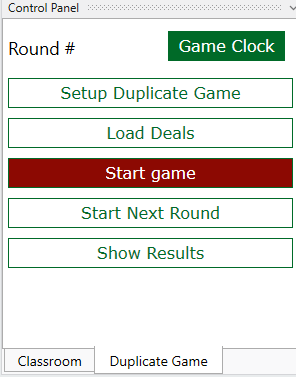 | For round one, after you have seated the students and loaded the boards, you can press “Start the Game.” If you need robots, go to the Classroom tab and run the robots. The “Load Deals” button on both the Duplicate game and the Classroom will do the same thing---upload a set. When you click “Start game,” it will turn into Pause game, and you can pause / continue the action at any time. At the end of each round you can reload the hands and discuss them as in a regular class, make sure you always use the white Upload Deal Set buttons. If you use special deals with pre set Auction always choose the right option. if you load a deal with the blue Play buttons make sure to Upload the set before you start next round. |
Example of a defense lesson in which students play 6 boards and the teacher goes over the board once it is complete:
1. Prepare the hands to be defended by North/South
2. Seat everyone into the NS position, leave EW to the robot.
3. Go to Duplicate game tab and Setup the Duplicate game for 6 rounds Mitchell movement with 1 board per round.
4. Upload a Deal set with the hands you prepared in step #1.
5. Click Start Game and Run Robots. Once the round is complete all tables will be Black, make sure to claim on all tables that failed to complete a board.
6. The game will stop at the end of each round. You can replay and discuss the hand with your Teacher's table exactly the way you normally do.
7. Once you are ready for the next round/board, select “Next Board” from the Duplicate Game control panel.
Related posts

We are introducing an easy and quick way to run polls. You can just type a question and a few possible answers on the fly, or you can use a canned...
Oct 17, 2021

We are introducing an easy and quick way to share hands with your students. The requirements are that the student has the latest Shark Bridge App and a VIP subscription. You need an email list of your students because the emails that are registered for a Shark VIP account receive the hands; those that are not are discarded; we do not harvest them!
Aug 26, 2021

Here you can find video tutorials from teachers using Shark Bridge Teacher's Console for online lessons.

Jul 20, 2020