
How to switch places at Shark's online bridge table

Jul 8, 2021
How to switch your seat on iPad/iPhone (scroll down for instructions for Mac and Windows):
 | Touch your nickname on the bottom hand tray. |
 | A small screen with your mini stats comes up. Touch 'Leave Seat' and you are now kibitzing at the table. |
 | Touch on any of the available seats (they are labeled "Robot" or "Locked"). Touch "Yes" on the prompt, and you are seated. |
How to switch your seat on Mac or Windows:
 | Click your nickname on the bottom hand tray. |
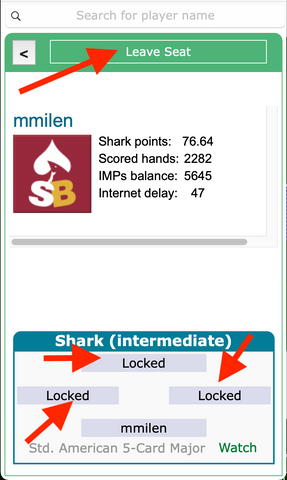 | This pop-up screen comes up. You can click on any of the available seats at the bottom of the screen ( labeled "Robot" or "Locked"), and you will be seated. To kibitz at the table click "Leave Seat" at the top of that screen |
Related posts
Sources: You can obtain PBN or LIN files from instructors, The Common Game, or BBO. For iPhone/iPad Users: Locating the File: Access the email w...

Nov 13, 2023

To add a file to a classroom module using a code in the Shark Bridge app, follow these steps: Open Shark Bridge App: Start by opening the Shark ...
Nov 13, 2023
Here are video tutorials presenting the essential mechanics and features in Shark Bridge app: 1. How to start, install and customize the applicati...
Mar 2, 2022