
How to import file in Shark bridge app using a code

Plamen Panayotov
Nov 13, 2023
To add a file to a classroom module using a code in the Shark Bridge app, follow these steps:
- Open Shark Bridge App: Start by opening the Shark Bridge app from its icon on your device.
- Access Classroom Hands Menu: In the app, click or touch on the "Classroom hands" menu. This action will bring up a screen similar to the one below.
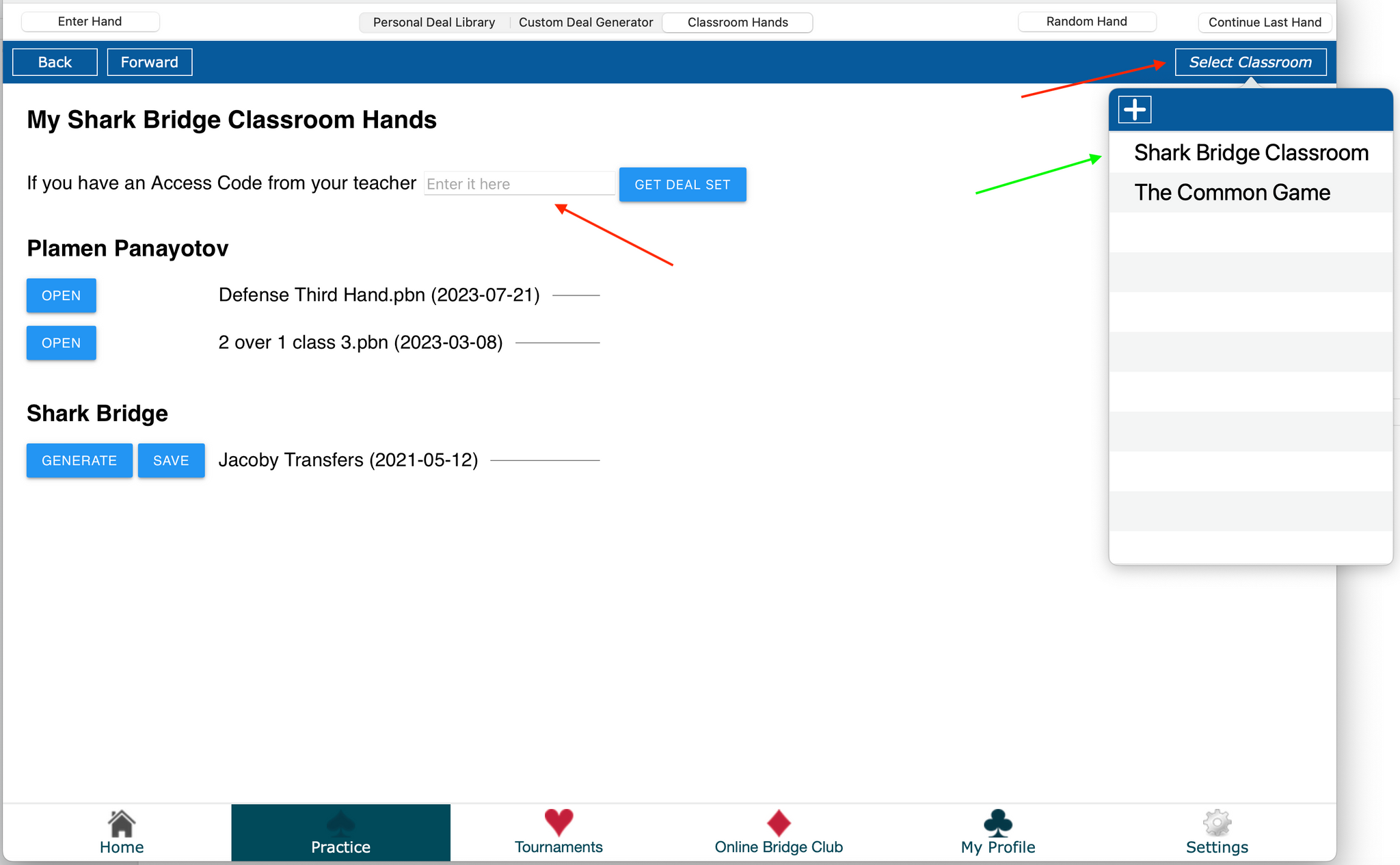
- Select Classroom (if needed): By default, the Shark Bridge Classroom should appear. If you're connected to different classrooms, you can switch by clicking “Select classroom” and then choosing “Shark Bridge Classroom.”
- Enter the Code: Find the box that prompts you to “enter it here” and type in the provided code.
- Get the Deal Set: After entering the code, click on the button labeled “Get Deal set.”
- Receive Confirmation: Upon successful entry of the code, you should see a message indicating that you have received a file. The name of the file will be displayed.
- Open the File: Click on the blue “Open” button. This action will open the file in your deal library.
- View File Details: In your deal library, you can view all details of the file, including hands, auction, and play (if available). You can then decide which board you want to play.

Related posts
Sources: You can obtain PBN or LIN files from instructors, The Common Game, or BBO. For iPhone/iPad Users: Locating the File: Access the email w...
Plamen Panayotov
Nov 13, 2023
1 min read
Here are video tutorials presenting the essential mechanics and features in Shark Bridge app: 1. How to start, install and customize the applicati...
Plamen Panayotov
Mar 2, 2022
1 min read

Shark app offers a choice of several bidding systems - Standard American 5-Card Major, 2/1GF, ACOL. Click here for SAYC Convention card: Click her...
Plamen Panayotov
Mar 2, 2022
1 min read